


Risks of using webcam covers on MacBooks

Tech Desk
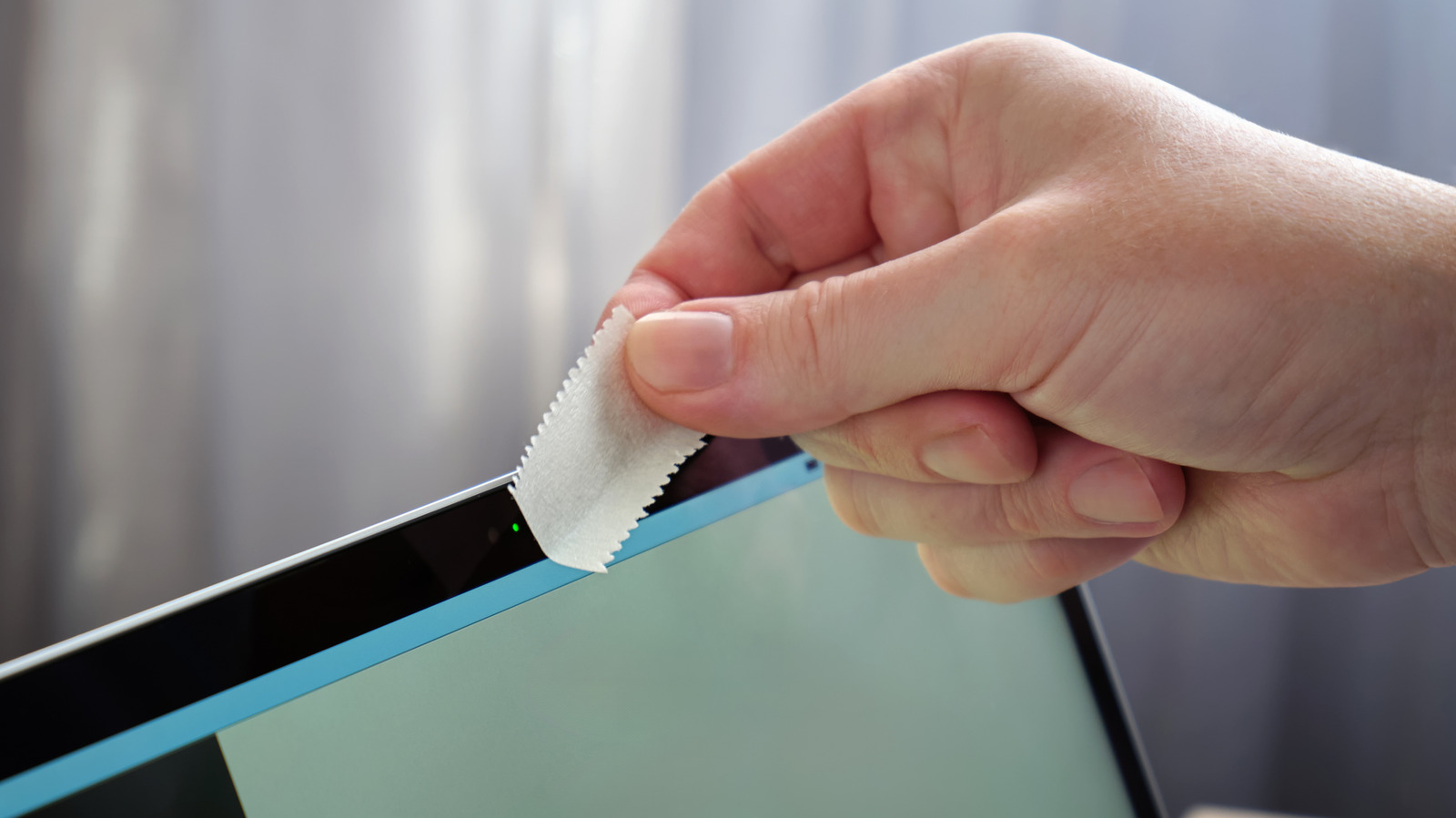
Most individuals do not require a physical cover for their MacBook webcam, as almost every model features a green indicator light positioned next to the camera. This light is inextricably tied to the webcam, ensuring the camera cannot operate without triggering the LED. For the MacBook Neo, which lacks a built-in indicator, macOS displays a green dot at the top-right of the screen that overlays all other content. Furthermore, applications must request permission to access the camera, and users should be concerned if the light appears when they are not taking a photo or on a call.
Advertisement
If you notice the indicator light or wish to manage privacy settings, navigate to System Settings, select Privacy & Security, and click Camera. This section displays every app granted webcam access, allowing you to disable any that should not have permission. Once an app is turned off, it cannot access the camera until the setting is manually adjusted. Additionally, you can click the green camera icon in the menu bar to identify which application is currently using the webcam.
Should your workplace mandate a webcam cover, or if you prefer to use one, ensure you follow Apple's recommendations. It is also a good idea to remove the cover before closing your MacBook's lid. Our list of great accessories to buy for your MacBook includes a super-thin webcam cover.